JoinPD is the student entry point for Pear Deck, an interactive presentation platform designed for K-12 education. Students use a unique session code to access live, engaging lessons through any web browser at app.peardeck.com/join (formerly joinpd.com).
In this guide, I’ll share my personal experiences along with the latest features and tips.
How JoinPD Works
For Students
- Receive the Code – Your teacher displays a 5-6 character session code
- Navigate to Join Page – Visit app.peardeck.com/join on any device
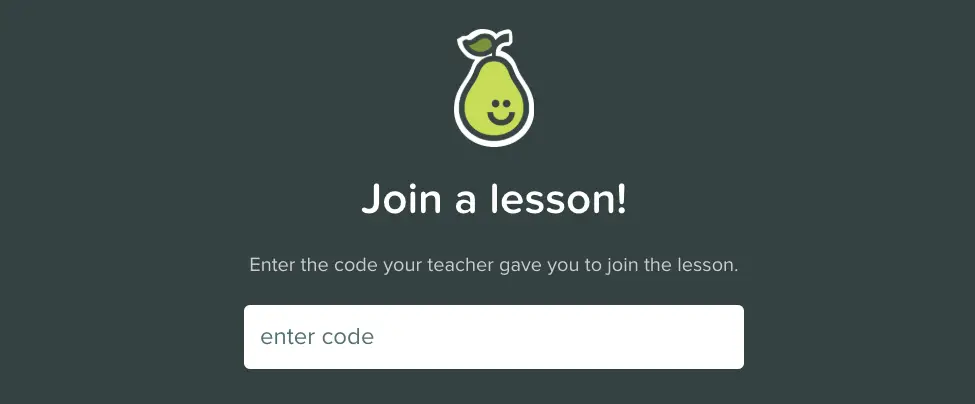
- Enter Code – Type the code exactly as shown
- Sign In – Log in using your school Google or Microsoft account (some sessions allow anonymous access)
- Participate – Respond to questions, complete activities, and engage with lesson content in real-time
For Teachers
Teachers create interactive presentations using the Pear Deck add-on for Google Slides or Microsoft PowerPoint. During live sessions, they can:
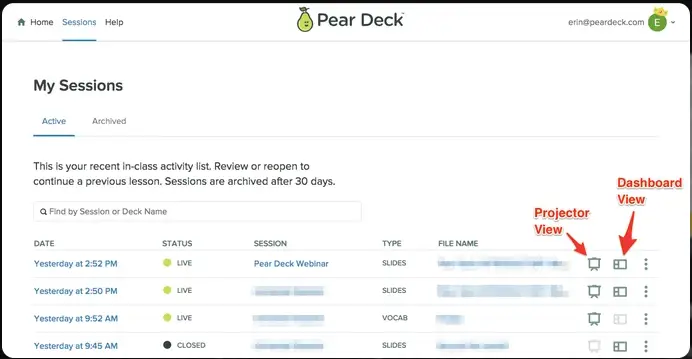
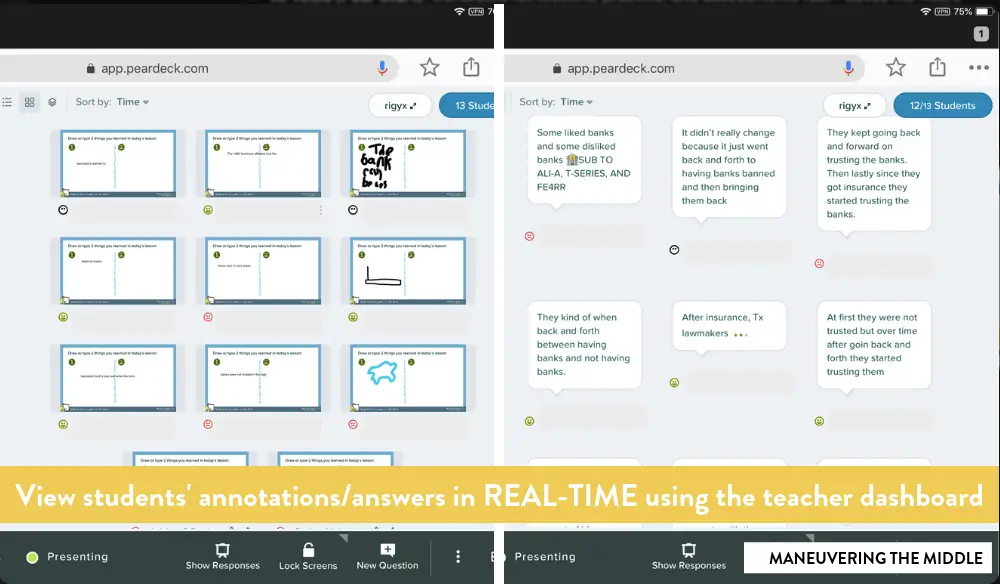
- Monitor student responses in real-time
- Adjust instruction based on immediate feedback
- Share selected student responses with the class
- Track participation and comprehension
Important Note: This is an independent educational guide created to help students, teachers, and parents understand JoinPD and Pear Deck. For official information, always visit peardeck.com or contact your school administrator.
Getting Started: Account Setup
Creating a Pear Deck Account
Teachers:
- Visit peardeck.com and select “Sign Up”
- Use your school-provided Google or Microsoft account for single sign-on
- Choose between Free and Premium plans based on your needs
Students:
- No account creation necessary for basic participation
- Optional: Sign in with school credentials to save progress and receive personalized feedback
Login Process
- Go to app.peardeck.com
- Select your role (Teacher or Student)
- Sign in using your school email credentials
- Enable two-factor authentication for enhanced security (recommended)
Password Recovery: If using email-based login, click “Forgot Password,” enter your email address, and follow the reset link sent to your inbox.
Technical Requirements
- Browsers: Chrome (recommended), Firefox, Safari, Edge
- Devices: Desktop, laptop, tablet, or smartphone
- Internet: Stable connection required for live sessions
- Accounts: Valid school email for full access
Core Features
Interactive Question Types
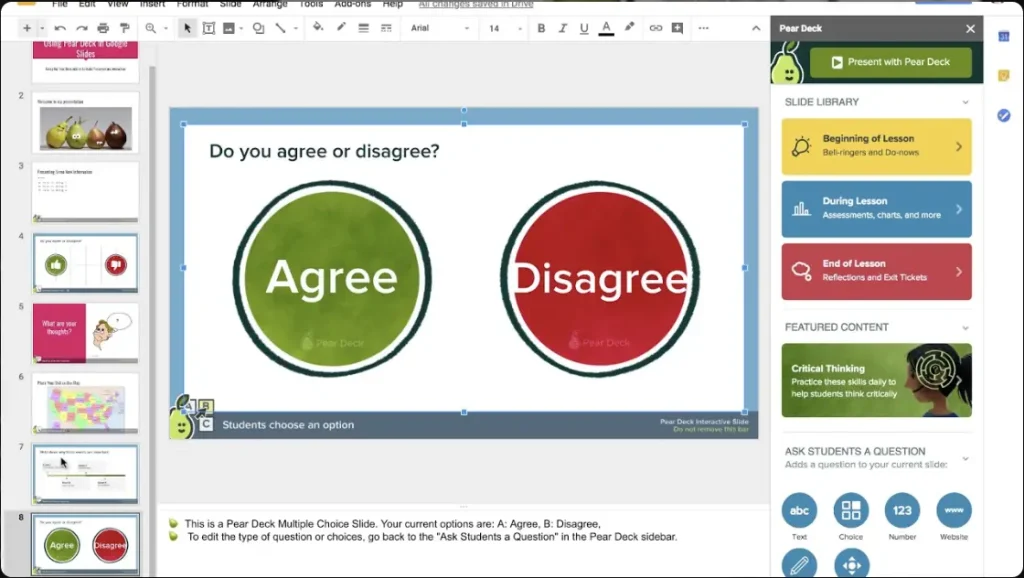
Pear Deck supports diverse response formats to accommodate different learning styles:
- Multiple Choice – Quick comprehension checks
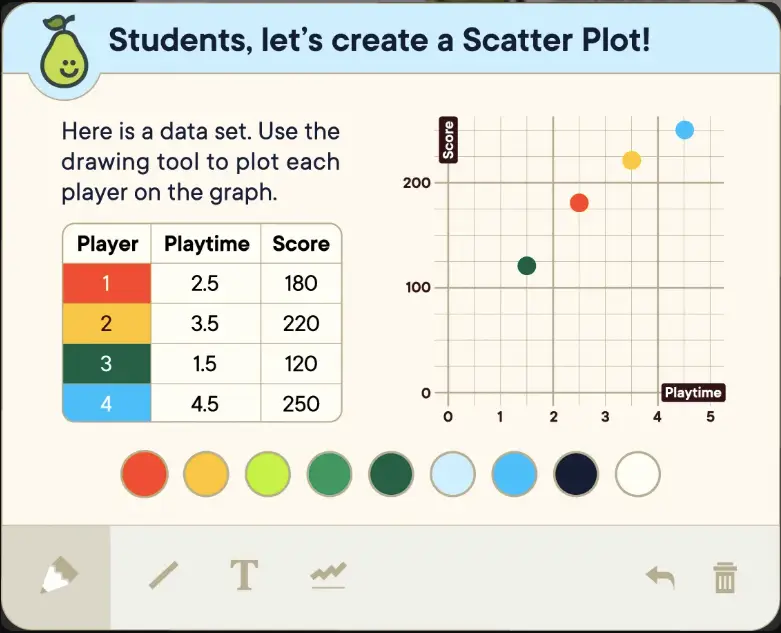
- Text Response – Short or long-form answers
- Number Slider – Numeric responses and rating scales
- Drawing – Visual explanations and diagrams
- Draggable Elements – Sorting, matching, and positioning activities
- Audio Response – Verbal explanations (Premium)
- Website Integration – Embedded external resources
Real-Time Feedback
Teachers receive instant insights into student understanding, allowing them to:
- Identify misconceptions immediately
- Adjust pacing based on class needs
- Provide timely support to struggling students
- Celebrate correct responses and creative thinking
Content Library
Access thousands of pre-built, standards-aligned lessons covering:
- Core subjects (Math, Science, ELA, Social Studies)
- Special topics (SEL, Digital Citizenship, STEM)
- Grade levels K-12
- Multiple languages and accessibility features
AI-Powered Tools (2025-2026)
Pear Start helps teachers create interactive lessons quickly:
- Generate complete presentations from topics or standards
- Add interactive questions automatically
- Differentiate content for various skill levels
- Create assessments and practice activities
Note: AI features follow responsible data practices with automatic deletion of generated content within 24 hours.
Learn more about Pear Deck benefits
Assessment Capabilities
Teachers can use Pear Deck for:
Formative Assessment
- Quick polls during instruction
- Exit tickets to check understanding
- Student self-reflection prompts
Summative Assessment
- Quiz creation with auto-grading
- Custom rubrics for open-ended responses
- Performance tracking over time
Data Analysis
- Class-wide participation metrics
- Individual student progress reports
- Standards alignment tracking
- Export data to learning management systems
Mobile Access
iOS App (iPhone/iPad)
- Download from App Store
- Requires iOS 14 or later
- Full feature parity with desktop version
Android App
- Download from Google Play
- Requires Android 8.0 or later
- Optimized for tablets and smartphones
Mobile Features
- Offline lesson preparation (syncs when connected)
- Touch-optimized drawing and interaction tools
- Push notifications for session updates
- Responsive design for all screen sizes
Learn more about Pear Deck App
Pricing Overview (2026)
| Plan | Annual Cost | Key Features |
|---|---|---|
| Teacher Free | $0 | Basic interactive questions, unlimited AI generation, standards-aligned content library, class-wide view |
| Teacher Premium | $125/year | Advanced question types (drawing, draggable, audio), student-paced mode, private student messaging, detailed analytics |
| School/District | Custom pricing | Volume licensing, admin dashboard, professional development, dedicated support, LMS integration |
Pricing subject to change. Visit peardeck.com/pricing for current information.
Free vs. Premium Comparison
Free Plan Includes:
- Unlimited sessions
- Multiple choice and text questions
- Projector mode
- Basic reporting
Premium Adds:
- All interactive question types
- Takeaways and reflection tools
- Teacher dashboard
- Advanced feedback options
Privacy and Security
Pear Deck maintains strong data protection standards:
- FERPA Compliant – Meets U.S. educational privacy requirements
- GDPR Compliant – Adheres to international data protection standards
- Data Minimization – Collects only necessary information
- AI Safety – Generated content automatically deleted within 24 hours
- Secure Authentication – SSO through trusted educational providers
For detailed privacy information, review the official privacy policy at peardeck.com.
Comparison with Alternatives
| Feature | Pear Deck | Nearpod | Kahoot! |
|---|---|---|---|
| Interactive Question Types | 7+ formats | 11+ formats | Primarily quizzes |
| AI Content Generation | Extensive (Pear Start) | Limited | None |
| Real-Time Feedback | Advanced analytics | Standard reporting | Leaderboard focus |
| Google/Microsoft Integration | Native add-ons | Import required | Standalone platform |
| Free Tier | Robust features | Limited sessions | Basic functionality |
| Best For | Formative assessment & engagement | Content-rich lessons | Gamified review |
Each platform serves different educational needs. Pear Deck excels in seamless integration with existing slide workflows and formative assessment.
Troubleshooting Common Issues
Students Cannot Join Session
Solutions:
- Verify the code is entered correctly (codes are case-sensitive)
- Check that the session is currently active
- Ensure stable internet connection
- Try refreshing the page or using a different browser
- Confirm school network doesn’t block app.peardeck.com
Login Problems
Solutions:
- Use school-provided Google or Microsoft account
- Clear browser cache and cookies
- Disable browser extensions that might interfere
- Contact your school IT department for account verification
Technical Performance Issues
Solutions:
- Use Google Chrome for optimal performance
- Close unnecessary browser tabs
- Check internet connection speed (minimum 1 Mbps recommended)
- Restart device if problems persist
- Update browser to latest version
For additional support, visit the Pear Deck Help Center.
Teacher Best Practices
Creating Effective Sessions
- Start Simple – Begin with multiple choice and text questions before advancing to complex interactions
- Mix Question Types – Vary activities to maintain engagement
- Use Anonymous Mode – Encourage honest responses from hesitant students
- Monitor in Real-Time – Adjust pacing based on student understanding
- Share Student Work – Highlight exemplary responses (with permission)
Maximizing Engagement
- Set clear participation expectations
- Provide think time before collecting responses
- Use drawing tools for visual learners
- Incorporate movement with draggable activities
- Follow up with reflection questions
Assessment Strategies
- Use entrance tickets to activate prior knowledge
- Embed formative checks throughout lessons
- End with exit tickets to gauge understanding
- Review data before the next class session
- Differentiate follow-up instruction based on results
Accessibility Features
Pear Deck includes tools to support all learners:
- Text-to-Speech – Read-aloud support in multiple languages
- Multilingual Interface – Available in Spanish, Chinese, Arabic, and more
- Keyboard Navigation – Full functionality without a mouse
- Screen Reader Compatible – Works with assistive technologies
- Adjustable Font Sizes – Customizable text display
- Color Contrast Options – High-contrast mode available
Teachers can enable specific accommodations for individual students through the dashboard.
Frequently Asked Questions
Support Resources
For Teachers
- Pear Deck Help Center – Comprehensive guides and tutorials
- Community Forum – Connect with other educators
- Professional Development – Training courses and certifications
- Email Support – Available through your Pear Deck account
For Students
- Ask your teacher for session-specific help
- Review the Student Quick Start Guide (available from your teacher)
- Contact your school’s IT department for technical issues
For Parents
- Understand how your child engages with digital learning
- Review privacy practices at peardeck.com/privacy
- Contact your child’s teacher with questions about specific lessons
Conclusion
JoinPD serves as the gateway to interactive, engaging classroom experiences powered by Pear Deck. Whether you’re a student looking to participate more actively in lessons, a teacher seeking to enhance formative assessment, or a parent wanting to understand your child’s digital learning tools, this guide provides the foundational knowledge needed.
For the most current information, official announcements, and detailed feature documentation, always refer to peardeck.com or consult with your school’s educational technology team.

A Letter from Jessica Joseph
I’m Jessica Joseph, your JoinPD guide, here to support interactive and engaging learning experiences. If you’re looking for a simple and effective way to make classroom participation more dynamic, you’re in the right place.
This website serves as a helpful resource for understanding how JoinPD works. We provide clear, easy-to-follow information to help students and educators use JoinPD access smoothly and confidently.
Here, you’ll find guidance on joining live sessions, understanding interactive lessons, and making the most of classroom participation tools. Our goal is to help make learning more engaging, organized, and accessible for everyone.
Let’s get started with JoinPD and create a more interactive learning environment together.
Sincerely,
Jessica Joseph
Disclaimer
This website is an independent resource and is not affiliated with, endorsed by, or associated with Pear Deck or any of its products or services.
Any trademarks, service marks, trade names, product names, and logos mentioned on this website are the property of their respective owners. All visual content, including images, illustrations, and photographs, is copyrighted by its respective owner.
The publisher of this website does not recommend or endorse any specific service provider, plan, or course of action. This website is for informational purposes only and should not be considered a substitute for professional advice. It is not endorsed by or affiliated with app.peardeck.com
The publisher is not responsible for any consequences that arise from using the information provided on this website.